
Help
This page explains what happens when you tap each part of the App. If you run into trouble, see also the FAQ.
About this app
Chill Summoners lets you relax to chill arrangements of Grand Summoners music while watching a character walk through scenic backgrounds. It also includes a clock, alarms, a timer and a Pomodoro timer, so you can use it as background music while you work, take a break or wind down before bed.
Main features
- Music: Plays 8 chill arrangements of Grand Summoners tracks. Use playlists to choose which tracks play and in what order.
- Background and Ambience: Choose from 5 locations and times of day, and layer ambient sound for each location.
- Clock, Alarm, Timer and Pomodoro: Along with the time, use alarms, a countdown or count-up timer, and Pomodoro cycles of focus and break.
- Sleep timer: After the time you set, music and ambience fade out and stop.
- Characters and Codex: Choose 1 of 5 characters to walk with you. Keys build up while the app is open, and you use them to unlock each character’s secrets.
Supported devices
Available on iPhone, iPad, Android and PC (Steam for Windows and Mac). For differences between devices, see “Differences by device”.
Background playback and how to stop it
By default, music and ambience keep playing after you leave the app. If you do not want this, change the settings as shown below.
What keeps running while the app is closed
- Music and ambience: They keep playing when you go to your device’s home screen or turn off the display.
- Walking distance: [iPhone/iPad] [Android] Time spent playing music while the app was closed is added when you return to the app.
- Alarms, timers and Pomodoro: If notifications are allowed, you are notified even while the app is closed. [PC] Alarms do not ring when the app is not running.
Stop music and ambience when you leave the app
- Tap “Settings” in the menu (≡).
- Under “Sound”, turn off “Play music in background”.
- To stop ambience as well, also turn off “Play ambience in background”.
When these are off, music and ambience stop when you leave the app and continue when you return.
When “Play music in background” is off, walking distance is not added while the app is closed.
[PC] Music keeps playing when another window is in front. These settings apply when you minimize the window or hide it to the tray or Dock.
Stop the music that is playing now
- Tap ❙❙ on the controls screen to pause the music.
- To stop after a set time, use the “Sleep timer”.
[iPhone/iPad] You can also pause from the lock screen, Control Center or earphones.
[Android] You can also pause from the notification, the lock screen or earphones.
Quit the app
[iPhone/iPad] [Android] Close the app from your device’s app switcher.
[PC] Tap “Quit” at the bottom of the menu (≡).
When you fully quit the app, any running timer is cleared.
Basic screens
When you open the app, the home screen shows a character walking through the background. Music starts automatically from the track you played last time (the first track on your first launch).
Home
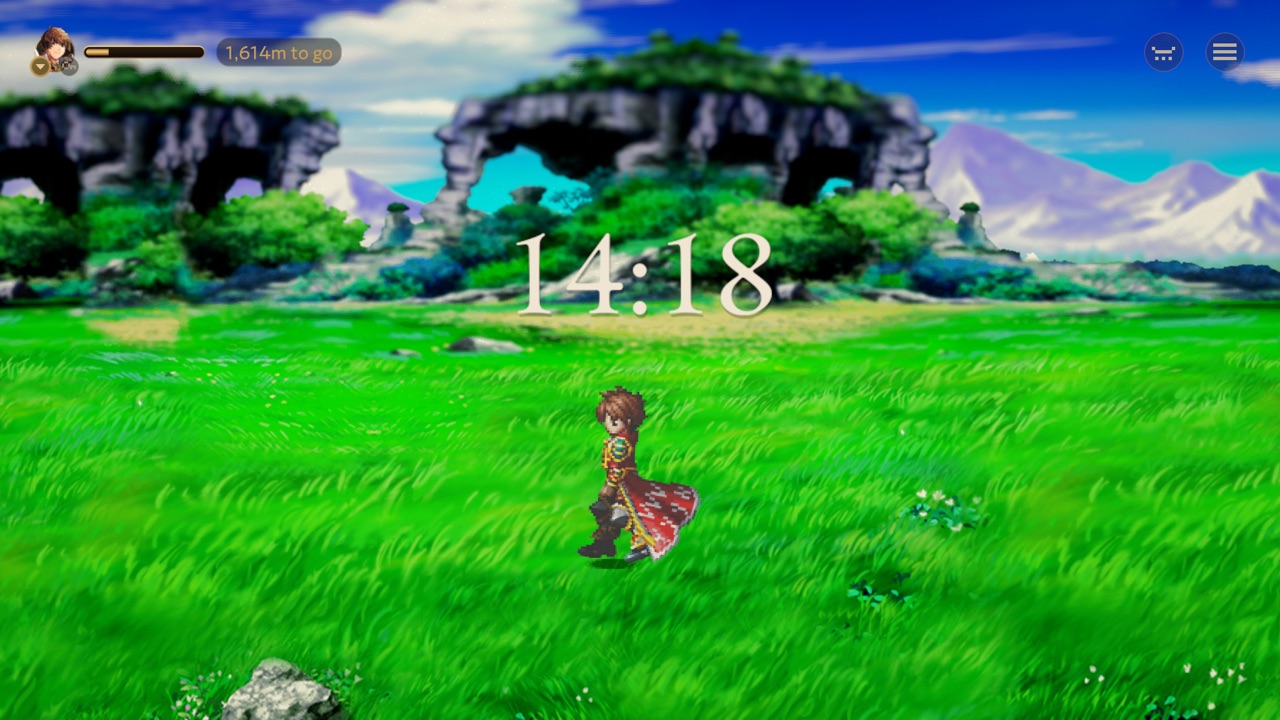
- Tap an empty area to open the controls screen.
- Tap ≡ at the top right to open the controls screen with the menu open.
- Tap the closed-eye icon at the top right to switch to view mode.
- Tap the character’s face at the top left to open “Characters”.
While a timer or Pomodoro is running, “… min left” appears under the time. Tap it to open the one that is running.
Controls screen
This screen shows the Clock, Alarm, Pomodoro and Timer buttons and the music controls.
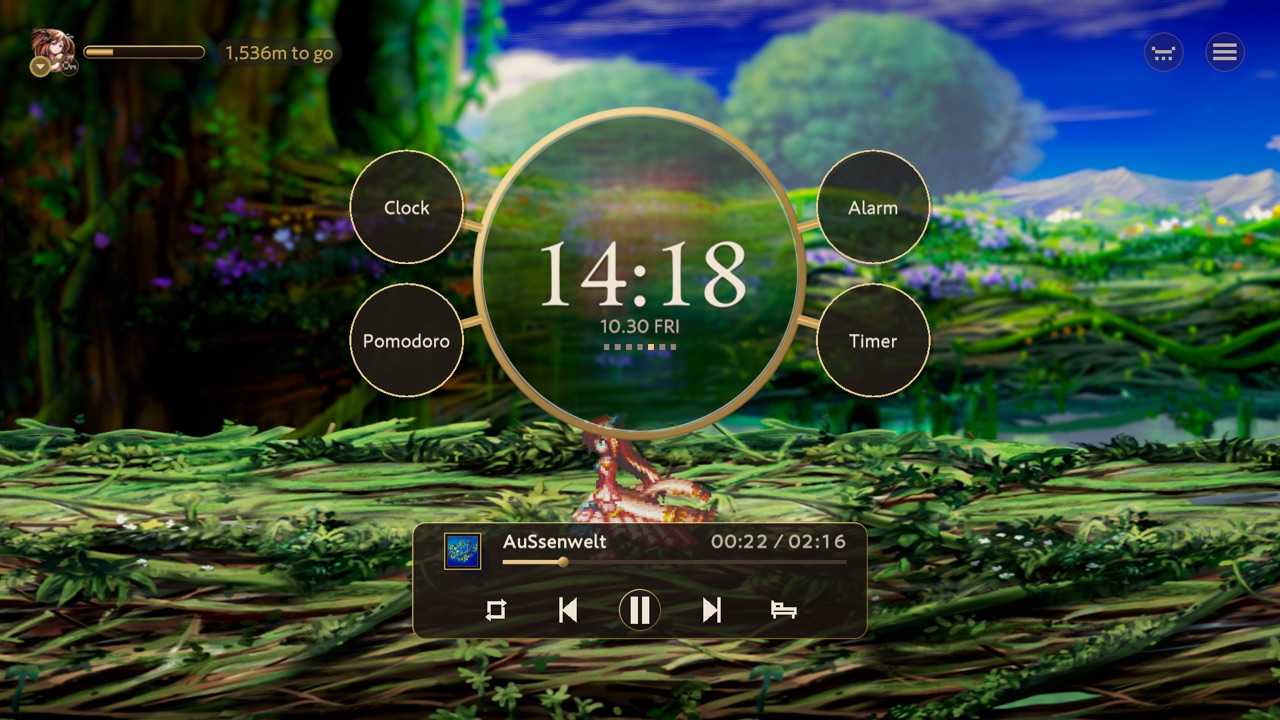
- Tap “Clock”, “Alarm”, “Pomodoro” or “Timer” to open that screen.
- Use the music controls at the bottom for previous track, play/pause and next track. Drag the dot on the progress bar; the track continues from where you let go.
- Tap the jacket to open “Music”.
- Tap an empty area to return to the home screen. The app also returns to the home screen after 6 seconds without a touch.
While the menu is open, the app does not return to the home screen automatically.
Menu
- Tap the menu (≡) at the top right of the screen.
- Choose “Music”, “Characters”, “Background”, “Ambience” or “Settings”.
- Tap outside the menu, or tap ≡ again, to close it.
View mode
- On the home screen or the controls screen, tap the closed-eye icon at the top right.
- The time and buttons disappear and only the background and character remain. “Display hidden” appears.
- Tap anywhere to return to the previous screen.
Music, timers, Pomodoro and walking distance keep going in view mode. View mode does not end by itself.
Clock
Change the time format, date format and first day of the week. Changes here also apply in Settings.
Change the format
- On the controls screen, tap “Clock”.
- Tap “12-hour” or “24-hour” to change the time format.
- Tap “Sun” or “Mon” to change the first day of the week.
- Tap one of the two date formats (“10.06 TUE” or “Tue, Oct 6”) to change the date format.
Switch screens
- Swipe sideways inside the clock to go Clock → Alarm → Pomodoro → Timer. Swipe the other way to go in reverse.
- Tap outside the clock to return to the controls screen.
On first launch, the formats match your device’s region.
Alarm
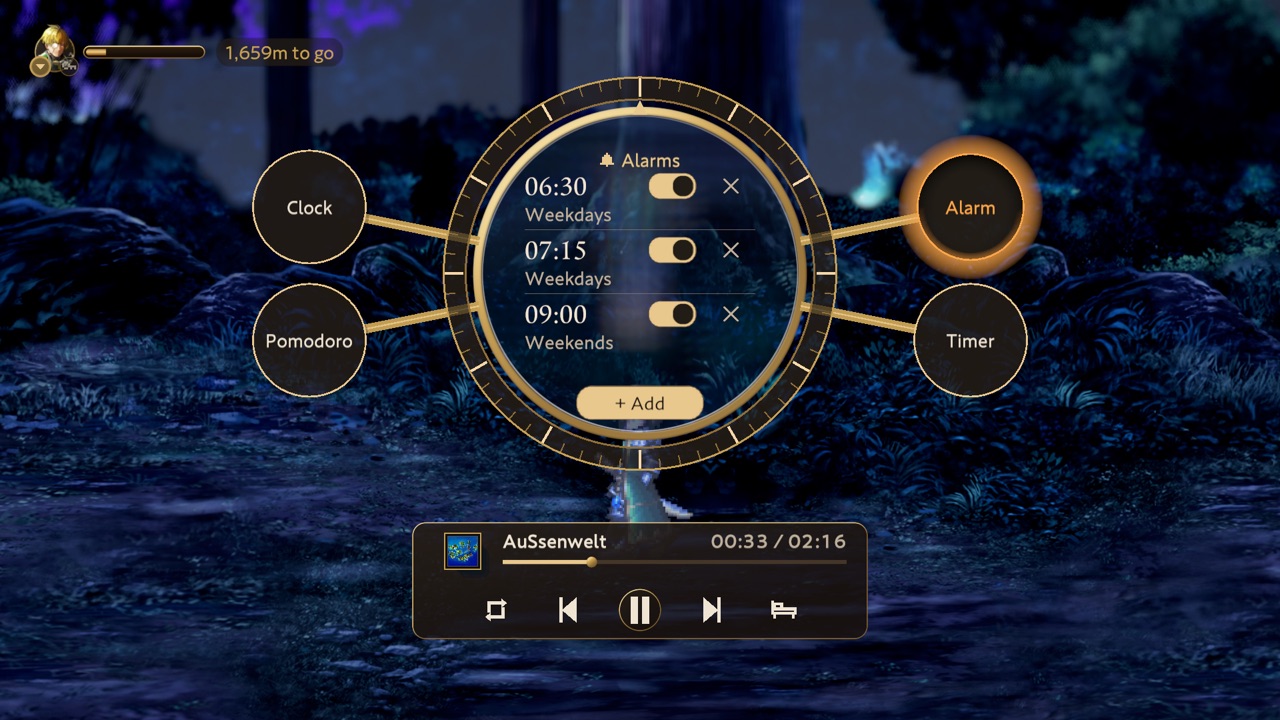
Plays a sound at the time you set. You can create up to 10 alarms.
Create an alarm
- On the controls screen, tap “Alarm”.
- Tap “+ Add”.
- Swipe the hour and minute numbers up or down to set the time, then tap “Next”. With the 12-hour format, also choose “AM” or “PM”.
- Tap “Once”, “Daily”, “Weekdays” or “Weekends”. To pick days, tap “Custom”, tap the days, then tap “Next”.
- Choose a snooze length (1–15 min) or “Off”, then tap “Next”.
- Choose a sound from “Theme”, “Battle” or “Home”, then tap “Set”. The alarm turns on and you return to the list.
You can also turn the tick marks on the edge of the clock to set the minutes.
Edit, turn on/off or delete an alarm
- Tap a row in the list to edit that alarm. When editing, you can tap “Set” on any step to save.
- Tap the switch on a row to turn it on or off. A row that is off stays in the list.
- Tap ✕ on a row to delete it right away. For 10 seconds, tap “Undo” in the message to bring it back.
If you go back without tapping “Set” while editing, “Changes not saved” appears and your changes are discarded.
When an alarm rings
- Tap “Stop” to stop the sound. A one-time alarm turns off (it stays in the list).
- Tap “Snooze” to stop the sound; it rings again after the snooze length. The row in the list shows “Snoozed” and the next time.
When the app rings the alarm while open, music and ambience get quieter. They return to normal when you stop it.
If you tap neither for 15 minutes, the alarm stops by itself.
“Snooze” does not appear for alarms with snooze set to “Off”.
How alarms ring while the app is closed depends on your device. See “Differences by device”.
Timer
Use a countdown for a set length of time, or a count-up to measure elapsed time.
Use the countdown
- On the controls screen, tap “Timer”.
- Swipe the minute (0–99) and second numbers up or down to set the time.
- Tap ▶ to start.
- Tap ❙❙ to pause, or ■ to stop. Stopping with ■ resets to the time you set.
When it ends, a sound plays and “Timer finished” appears with “Open Timer”.
While it runs, turn the tick marks on the edge of the clock to add or remove time in 5-second steps.
Choose a preset
- Tap “Presets”.
- Tap “3 min”, “5 min”, “10 min”, “15 min”, “25 min”, “30 min”, “45 min” or “60 min” to set that length.
- Tap ▶ to start.
Use the count-up
- Tap “Count down” to change it to “Count up”.
- Tap ▶ to start counting from 00:00.
The count-up stops at 99:59. No end cue plays.
While running or paused, you cannot switch between countdown and count-up or use presets. Stop with ■ first.
The timer and Pomodoro cannot run at the same time. While Pomodoro is running, the timer screen cannot be used.
Closing the screen by tapping outside the clock does not stop the timer. Fully closing the app clears the timer.
Pomodoro
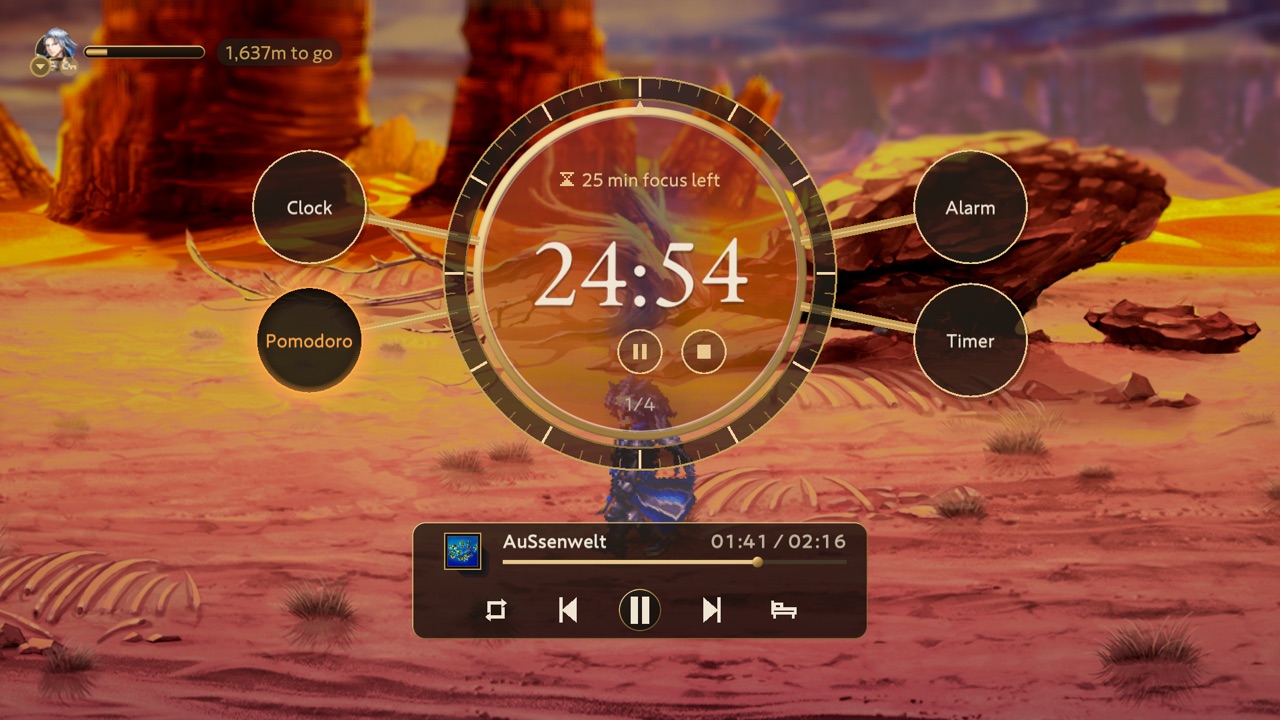
Repeats focus and break periods for the number of sets you choose. A sound and a message mark each change.
Start a Pomodoro
- On the controls screen, tap “Pomodoro”.
- Choose the “Focus” length (1–60 min) and tap “Next”.
- Choose the “Break” length (1–60 min) and tap “Next”.
- Choose the number of “Sets” (1–5) and tap ▶. It starts with the first focus period.
- Tap ❙❙ to pause, or ■ to stop.
The first time, it is set to 25 min focus, 5 min break, 4 sets. After that, it uses the numbers you used last.
After the last focus period, it ends without a break and shows “All sets complete”.
It cannot be used while the timer is running. Tap “Open Timer”, then stop the timer with ■.
Choose the end and change cues in Settings under “Finish Cue”: “Sound”, “Vibrate” or “None”.
Sleep timer
After the time you choose, music and ambience fade out and stop.
Set when the music stops
- On the controls screen, tap the bed icon at the right end of the music controls.
- Tap “15 min”, “30 min” or “60 min”.
- Tap “Confirm” to start counting. The bed icon glows orange and shows the minutes left.
Cancel
- Tap the bed icon.
- Tap “Never”, then tap “Confirm”.
When time is up, the sound fades over the last 20 seconds and the music pauses. The app does not quit.
When the sleep timer stops the music, the character stops walking and walking distance stops building. Tap ▶ to play music again and the character walks again.
The next time you open the app, it is always set to “Never”.
[PC] It counts only while the app is running.
Music
Plays 8 chill arrangements of Grand Summoners music. Make playlists to choose which tracks play and in what order.
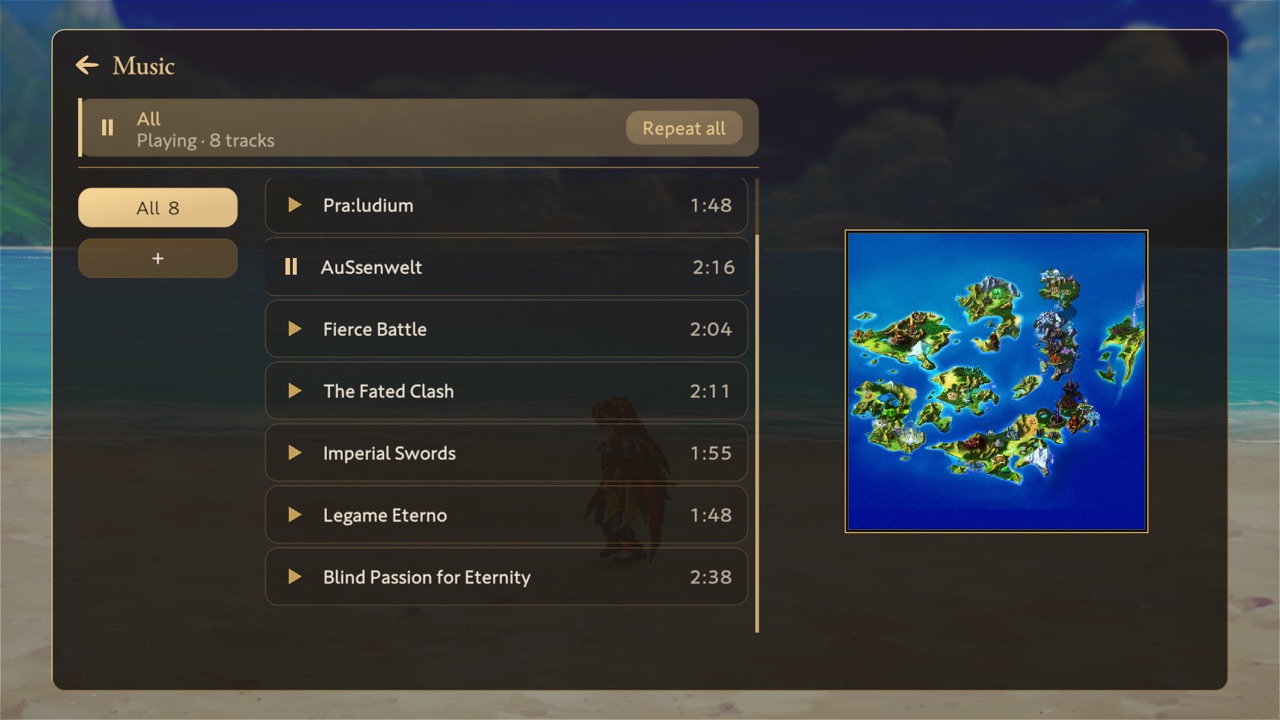
Choose a track
- Tap the jacket on the controls screen, or tap “Music” in the menu (≡).
- Tap a track row to play it right away.
- Tap the repeat switch to go “Repeat all” → “Repeat one” → “Shuffle”.
With “Shuffle”, no track repeats until every track has played once.
Create a playlist
- Tap “+” in the playlist list.
- Type a name or tap a suggested name, then tap “Confirm”.
- The new playlist is created and selected.
You can create up to 5 playlists. Names can be up to 20 characters.
“All” always contains every track and cannot be deleted or reordered.
Choose tracks not to play
- Select a playlist you created.
- Tap “Skip” on a track. It changes to “Skipped” and that track no longer plays.
- Tap “Skipped” to undo.
When only one playable track is left, it cannot be skipped.
Change the track order
- Select a playlist you created and tap “Reorder”.
- Drag a track by its three lines and let go where you want it.
- Tap “Confirm” to finish.
Rename or delete a playlist
- Tap the selected playlist again.
- Change the name and tap “Confirm”.
- To delete it, tap “Delete this playlist”, then “Delete”. Tracks won’t be deleted.
Order and skipped tracks are kept per playlist. The repeat setting is shared across the app.
[iPhone/iPad] [Android] In portrait, tap the magnifying glass on a track row to open “Track Info”. In landscape, the same details appear on the right side of the screen.
Background
Choose where the character walks and the time of day of the sky.
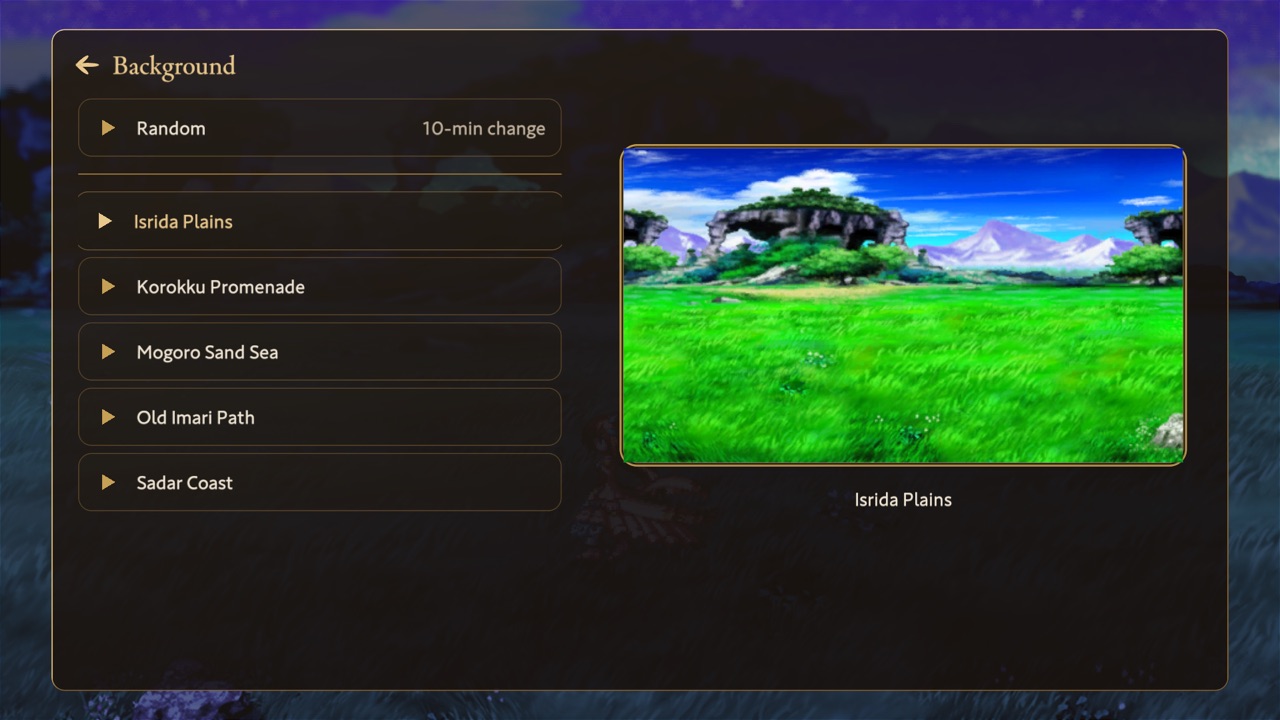
Choose a background
- Tap “Background” in the menu (≡).
- Tap “Isliid Plains”, “Coroc Road”, “Mogoro Sand Sea”, “Old Imari Path” or “Sadahl Coast”.
- Choose a time of day from “Morning”, “Day”, “Evening”, “Night” or “Realtime”, then tap “Confirm”.
- You return to the home screen with the new background.
With “Realtime”, the colors of the sky, ground and character follow your device’s clock. Any other choice keeps that look. The clock and alarm times do not change.
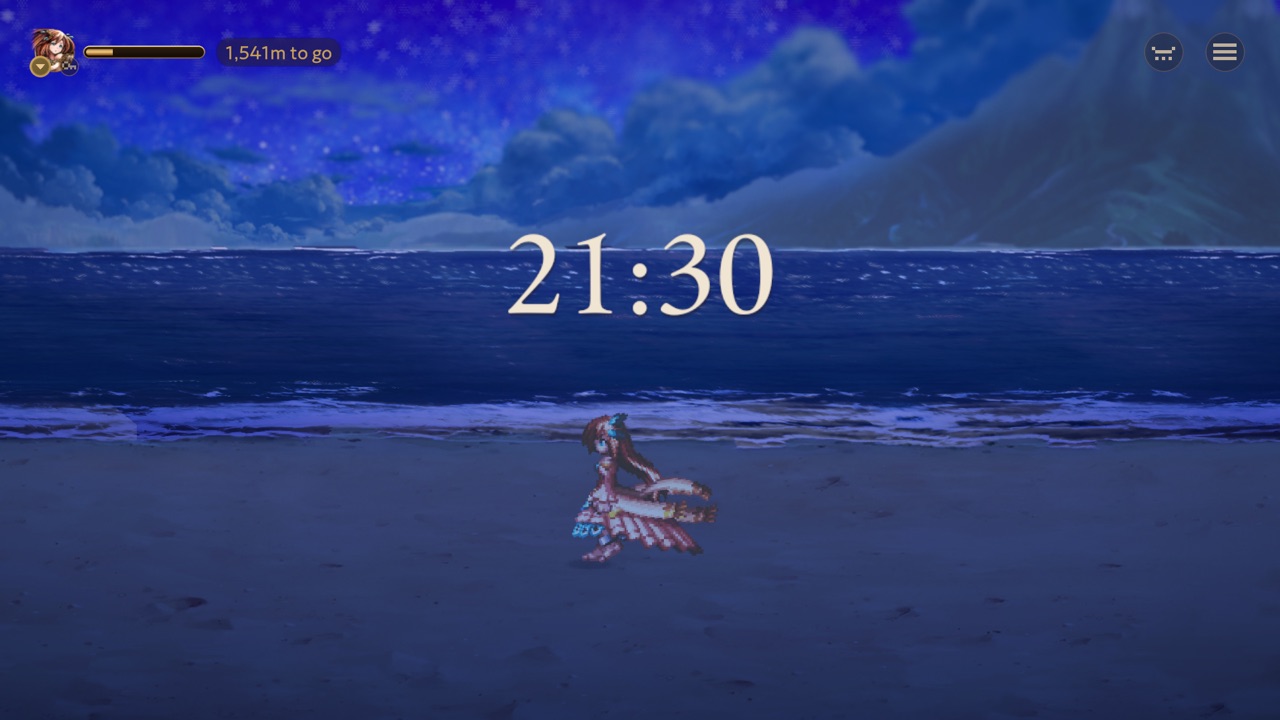
Isliid Plains and Coroc Road have only day and night looks. “Morning” shows the day look and “Evening” shows the night look.
Change backgrounds automatically
- In “Background”, tap “Random”.
- Choose a time of day and tap “Next”.
- Choose how often to change, from “1 min” to “60 min”, then tap “Confirm”.
With “Random”, the background changes to a different one at each interval.
Ambience
Plays ambient sound for each background location on top of the music.
Choose ambience
- Tap “Ambience” in the menu (≡).
- Tap the ambience you want. It fades in as the previous one fades out.
- Tap the playing row again to stop the ambience.
With “Match with background”, the ambience with the same name as the current background plays. It changes when the background changes.
Your choice is the same the next time you open the app, including when you turned it off.
Change the volume in Settings under “Ambience”.
Characters, secrets and keys
Choose the character who walks with you. Keys build up while the app is open, and you use them to unlock the character’s secrets.
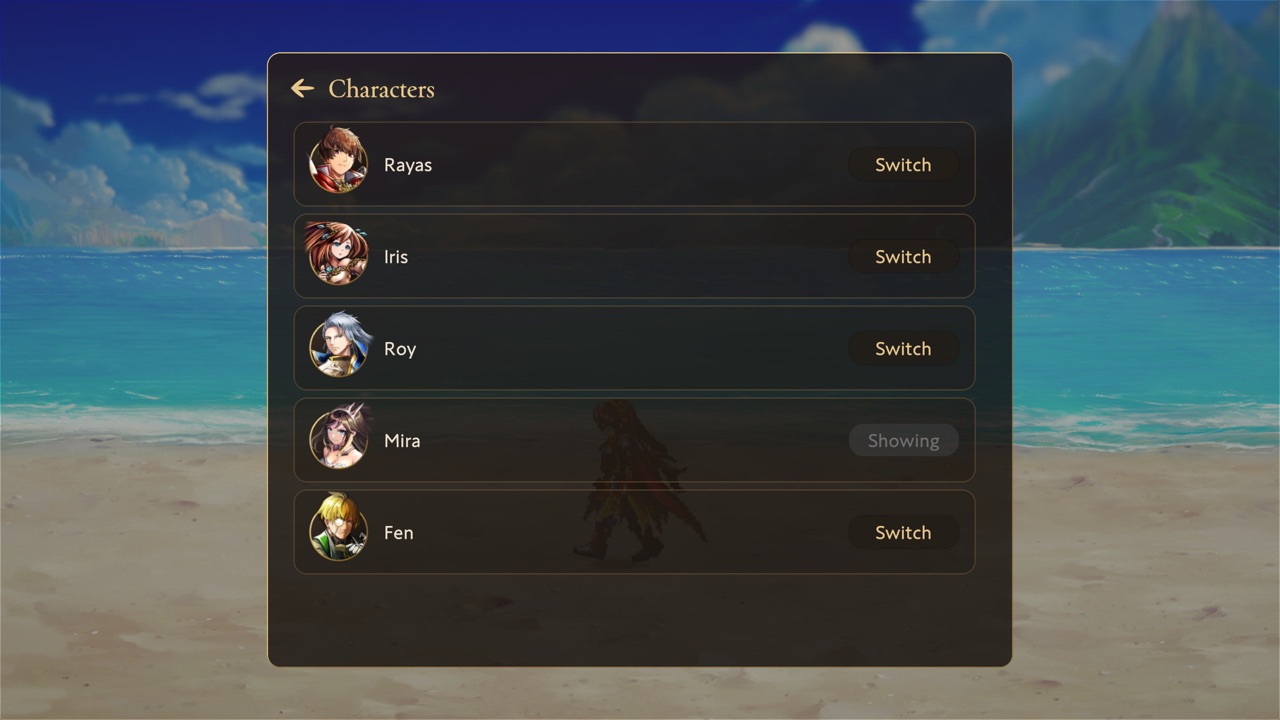
Switch characters
- Tap the character’s face at the top left, or tap “Characters” in the menu (≡).
- Tap “Switch” for the character you want. The row changes to “Showing”.
All five characters (Rayas, Iris, Roy, Mira and Fen) are available from the start.
Build up and collect keys
- While the app is open, the distance the character walks fills the gauge at the top left.
- At 2,000 m (about 30 minutes), the gauge is full, a sound plays and “Collect” appears.
- Tap “Collect” to get one key for that character. The gauge empties.
Walking distance is based on how long the app is open. It does not use your device’s step counter. It builds up even when music is paused.
A full gauge does not build up further. Tap “Collect” to start filling it again.
Distance and keys are separate for each character. Only the character on screen builds up distance. Switching keeps the previous character’s progress.
[iPhone/iPad] [Android] If music was playing while the app was in the background, that time is added when you return to the app (when “Play music in background” is on).
Each character can hold up to 99 keys.
Codex
View each character’s art and profile. Use keys to unlock secrets one at a time.
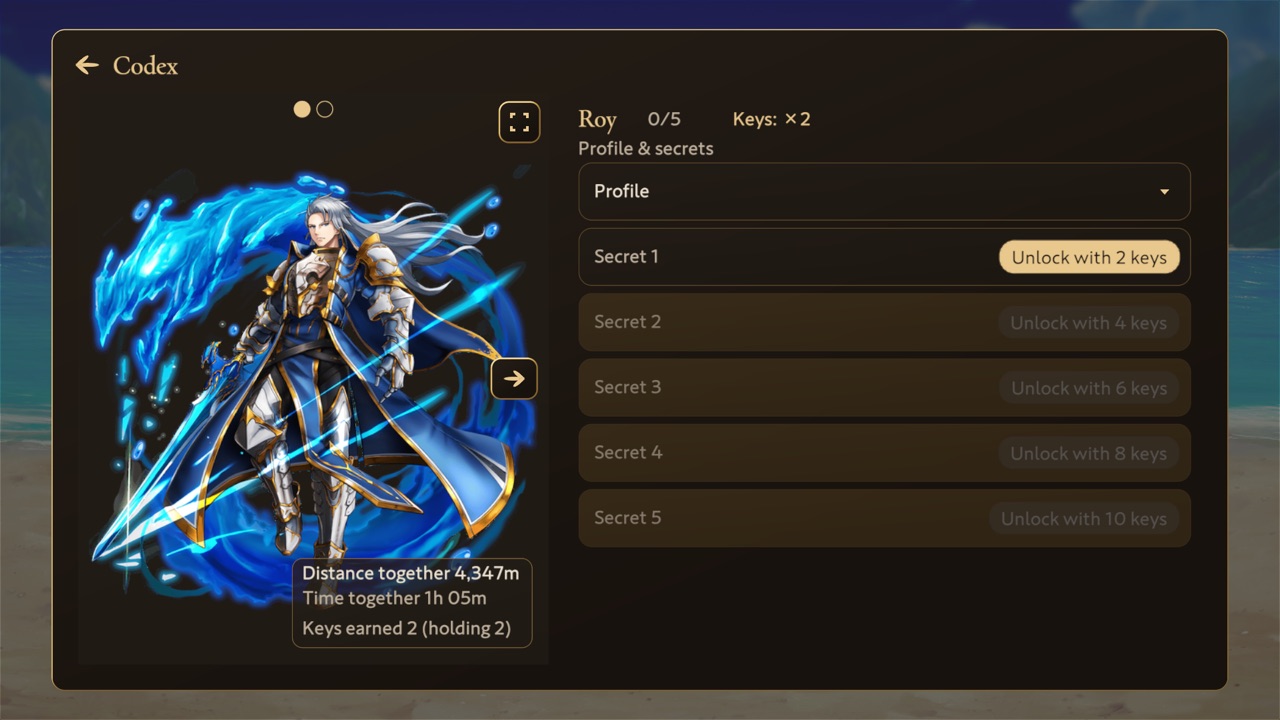
Open the codex
- In “Characters”, tap a character’s name or picture.
- Swipe the art sideways, or tap ← →, to see the next picture (such as the battle pixel art).
- Tap the enlarge icon at the top right of the art to show it full screen.
When the message after collecting a key shows “Open Codex”, tapping it also opens the codex.
Unlock a secret
- In the “Profile & secrets” list, tap “Unlock with … key(s)”.
- That many keys are used and the secret opens.
Each character has 5 secrets. From the top, they take 2, 4, 6, 8 and 10 keys: 30 keys per character.
Unlocked secrets stay open. Used keys are not returned. Keys cannot be used for other characters.
Awakened art
- Unlock all 5 secrets to add a page with the character’s awakened art. The face at the top left also changes to the awakened art.
- To go back to the original picture, tap “Set as icon” on the original art page.
Iris has no awakened art.
Settings
Tap “Settings” in the menu (≡). Changes are saved right away.
Display
- In “Orientation”, choose “Auto”, “Portrait” or “Landscape”. “Auto” follows how you hold the device.
- In “Dim”, choose “5 min”, “10 min”, “30 min” or “Off”. After that long without a touch, the screen dims. Tap the screen to restore it.
While the screen is dimmed, music, timers, the clock and walking distance keep going. The screen brightens when an alarm rings.
Format
- Choose “Time”, “Date” and “Start of Week”. These are the same as on the Clock screen.
- In “Language”, choose “日本語” or “English”. The screen is rebuilt. Music, timers and alarms keep going.
Sound
- Use the “Master Volume”, “BGM”, “Ambience” and “SFX” sliders to change volume.
- Turn “Tap Sounds” off to stop the sound when you tap buttons.
- In “Finish Cue”, choose “Sound”, “Vibrate” or “None” for timer and Pomodoro cues.
- Turn “Haptics” off to stop the device from vibrating.
- Turn “Play music in background” or “Play ambience in background” off to stop each when you leave the app. They continue when you return.
Alerts
- Turn “Notifications” off to stop notifications for alarms, timers and Pomodoro. Turn it on again to resume them.
Turning “Notifications” off does not change your device’s notification permission.
About
- Tap “Support” to open an email to chillsum_support@nextninja.co.jp.
- “Version” shows the app version on the right.
[PC] “Orientation”, “Dim”, “Haptics” and “Notifications” are not shown. The items in “PC-only controls” are added instead.
PC-only controls
On Steam (Windows and Mac), you can choose the window size and how the window sits on screen.
Small window
- Tap the small-window icon at the top right of the home screen or the controls screen. The M key also switches it.
- A small window shows the time, date, jacket and track name, plus previous track, play/pause and next track.
- Tap the restore icon at the top right, or press M, to return to the normal size. Tap the jacket to return to the normal size and open “Music”.
Tapping “Small window” in Settings also switches to the small window.
Full screen and always on top
- Tap the full-screen icon at the top right of the home screen or the controls screen to switch between full screen and the normal size.
- Turn “Always on top” on in Settings to keep the window in front of other apps.
Hide or quit
- [Windows] Tap “Hide to tray” in Settings to hide the window and show an icon in the system tray. Left-click the icon to bring it back.
- [Mac] Tap “Minimize to Dock” in Settings to put the app in the Dock.
- Tap “Quit” at the bottom of the menu (≡) to quit the app.
Keyboard
- Press Esc to close the screen that is open.
- [Windows] Even when the app is not in front, press Ctrl+Alt+P for play/pause, Ctrl+Alt+N for next track, Ctrl+Alt+B for previous track, and Ctrl+Alt+M for the small window.
[PC] Alarms ring only while the app is running. They do not ring if the app has been quit. When an alarm rings, the window comes to the front.
[PC] Music keeps playing when another window is in front. When you minimize the window or hide it to the tray or Dock, “Play music in background” and “Play ambience in background” apply.
Differences by device
Notifications, alarms, music while the app is closed, and save data work differently on each device.
Notification permission
- The first time you create an alarm, or start a countdown or Pomodoro, your device asks for notification permission.
- If you allow it, alarms, timers and Pomodoro notify you even while the app is closed.
The app asks only once. To change it later, use your device’s Settings app.
No notifications appear while the app is open. The app uses its own screen and sounds instead.
Alarms while the app is closed
[iPhone/iPad] On iOS 26 or later, the app also asks to use the iOS alarm feature after notification permission. If you allow it, alarms ring even with the silent switch on or during a Focus mode.
[iPhone/iPad] Without the iOS alarm feature, the alarm rings through notifications for a little over 2 minutes. With the silent switch on, no sound plays.
[Android] Alarms ring at the alarm volume and the device vibrates. Without the “exact alarm” permission, “Permission is needed to set alarms.” appears when you set an alarm. Tap “Allow” to open your device settings. Without the permission, the alarm may ring slightly off time.
[Android] Tap the notification to show a stop screen, then tap “Stop” or “Snooze”.
[PC] Alarms do not ring if the app has been quit.
Music while the app is closed
- Music and ambience keep playing when you go to your device’s home screen or turn off the display.
- To stop them, turn off “Play music in background” or “Play ambience in background” in Settings.
[iPhone/iPad] Use the lock screen, Control Center or earphones for play/pause, next track and previous track. The lock screen picture shows the current background and character.
[Android] While music plays, music controls appear in a notification. You can also use the lock screen or earphones.
[Android] The back key closes open screens one at a time. On the home screen, it does not quit the app.
Moving save data
[iPhone/iPad] With iCloud on the same Apple ID, your whole save data moves from iPhone to iPhone and from iPad to iPad. The newer save data is kept. Save data does not move between iPhone and iPad.
[Android] Save data is restored from your Google backup when you reinstall or change devices.
[PC] Save data moves with Steam Cloud.
Save data does not move between phones and PC, or between iOS and Android.